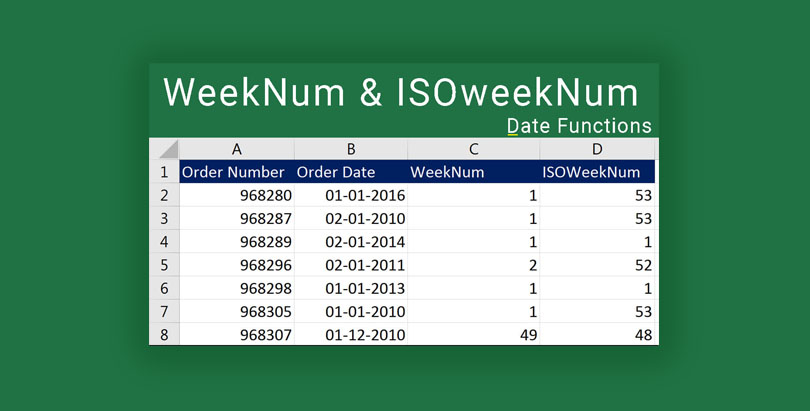

Excel WeekNum and ISOWeekNum Functions. In this video, we will learn about how to use WeekNum and ISOWeekNUm Excel Functions. These functions are designed to help you extract the number of a week from a given date. Using this week numbers you can organize your data more efficiently.
These numbers would help you manage your transactions data orders data sales data attendance information and much more in a very easy to navigate format.
WeekNum
Excel WeekNum function will provide you information about a week number by taking in two parameters, “Serial_number and a “Return_type”.
The serial number has to be a date and cannot be a text value in order to operate the function properly. If you pass in a text value a problem can occur and the results may not be accurate or may result in an error. You should pass the value for the serial number using a date function or you should provide a reference to a cell that has a proper date in it.
ISOWeekNum
ISOweekNum is designed in a slightly different manner. Use the following link to check out the definition of ISO: http://bit.ly/2laUw65
ISO week now will provide you information about the week number using a slightly different approach i.e. If a week 1 starts from the middle of the week where half of the week is the last week of the last year and half of the week is the first week of the beginning year that week will be considered as the last week of the previous year.
Click on the following button to download the file used in the demo to practice along with us.
As demonstrated in the video, the first week of 2016 is actually a part of the last week of 2015 and that is the reason when using ISOweekNum we got output as 53. Use these functions wisely wherever necessary. In case of trouble or doubt, right in the comments section below.
I hope that you’re enjoying learning Excel through this Excel learning series with Syed. I request you to share these videos with anyone who desires to learn Excel from scratch.
Do subscribe to the channel and enable notifications by clicking on the bell icon to receive updates about new videos as and when they are added to keep up with Excel Learning.
Excel Learning Series – TOC
- Excel 2016 – Basics – Find Sum, Average, Min and Max
- Excel 2016 Difference Between Formulas and Functions
- Excel 2016 Copy Formulas or Functions
- Microsoft Excel Auto Fill
- Excel 2016 Manage Views using Freeze Panes
- Microsoft Excel – Saving Workbooks
- Excel Upper and Lower Text Functions
- Excel 2016 – Text Function – Proper
- Excel Text Functions – Trim Function
- Excel – Text Function Left Function
- Excel Text Function – Right Function
- Excel Text Functions – MID Function
- Excel Concatenate Text Function
- Excel Nested Functions
- Excel Search Function
- Excel – Calculate Age using Date Function Today
- Calculate Tenure in Excel with Days Function
- Autofill Dates in Excel
- Formatting Dates in Excel
- Excel Date Format Shortcut
- Calculating Sum of Time in Excel
- Calculate Expiry Date in Excel 2016 – EDATE
- Find Age or Tenure using DATEDIF in Excel 2016
- RandBetween – Generate Random Dates in Excel 2016
- Excel Weekday Function
- Excel WeekNum and ISOWeekNum Functions
- Excel Networkdays and Excel Networkdays.INTL
- Excel Workday and Workdays INTL Functions
- Excel DATEVALUE AND TIMEVALUE
- Calculate Time Difference in Excel
- Calculate Quarter in Excel
- Rounding Day, Hour and Minutes in Excel
- Excel Pay Rate and Downtime Cost Calculation
- Excel Logical Functions IF, AND, OR
- Calculate Bonus in Excel Using IF Function
- Excel Learning – SumIF and SumIFS
- How to use Excel Count Functions
- How to use VLOOKUP in Excel
- How to vLookup in a different workbook in Excel
- VLookup for Multiple Sheets with Example
- Excel Custom Quarters
- Vlookup Return Custom Value
- Vlookup Based on Dropdown Selection
- HLookup in Excel
- Locate information using Match Function in Excel
- Converting Numbers to Words in Excel with VBA: A Step-by-Step Guide
- Excel Drop Down List Multiple Selection
- Show The Time Difference In Excel In Minutes Only
- Excel 2016 – Basics – Find Sum, Average, Min and Max
- Excel 2016 Difference Between Formulas and Functions
- Excel 2016 Copy Formulas or Functions
- Microsoft Excel Auto Fill
- Excel 2016 Manage Views using Freeze Panes
- Microsoft Excel – Saving Workbooks
- Excel Upper and Lower Text Functions
- Excel 2016 – Text Function – Proper
- Excel Text Functions – Trim Function
- Excel – Text Function Left Function
- Excel Text Function – Right Function
- Excel Text Functions – MID Function
- Excel Concatenate Text Function
- Excel Nested Functions
- Excel Search Function
- Excel – Calculate Age using Date Function Today
- Calculate Tenure in Excel with Days Function
- Autofill Dates in Excel
- Formatting Dates in Excel
- Excel Date Format Shortcut
- Calculating Sum of Time in Excel
- Calculate Expiry Date in Excel 2016 – EDATE
- Find Age or Tenure using DATEDIF in Excel 2016
- RandBetween – Generate Random Dates in Excel 2016
- Excel Weekday Function
- Excel WeekNum and ISOWeekNum Functions
- Excel Networkdays and Excel Networkdays.INTL
- Excel Workday and Workdays INTL Functions
- Excel DATEVALUE AND TIMEVALUE
- Calculate Time Difference in Excel
- Calculate Quarter in Excel
- Rounding Day, Hour and Minutes in Excel
- Excel Pay Rate and Downtime Cost Calculation
- Excel Logical Functions IF, AND, OR
- Calculate Bonus in Excel Using IF Function
- Excel Learning – SumIF and SumIFS
- How to use Excel Count Functions
- How to use VLOOKUP in Excel
- How to vLookup in a different workbook in Excel
- VLookup for Multiple Sheets with Example
- Excel Custom Quarters
- Vlookup Return Custom Value
- Vlookup Based on Dropdown Selection
- HLookup in Excel
- Locate information using Match Function in Excel
- Converting Numbers to Words in Excel with VBA: A Step-by-Step Guide
- Excel Drop Down List Multiple Selection
- Show The Time Difference In Excel In Minutes Only
We hope you find this post useful. In case you are stuck and or need help, feel free to drop a comment below or submit your question. Do share it further and add your feedback about the article in the comments section.