
How to make use of NETWORKDAYS function Overview
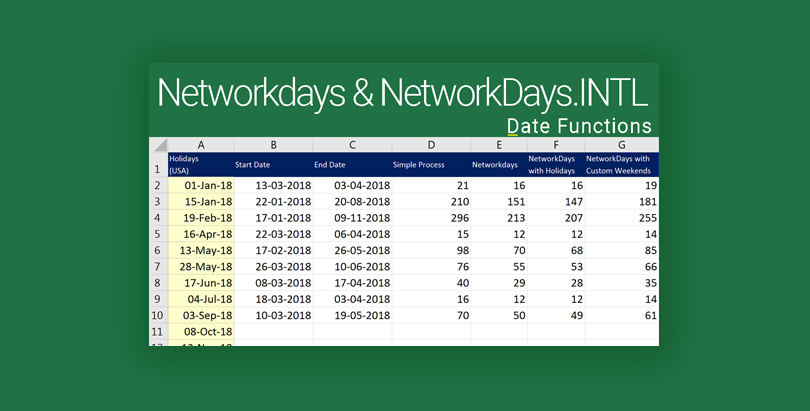
In this video, you will learn about how to make use of NETWORKDAYS function, and you also learn how to use NETWORKDAYS.INTL excel function. By the end of this video, you will be able to use these functions with ease and should be able to calculate the number of days between any given set of dates.
The video will demonstrate how to calculate days using these functions without excluding the holidays, excluding the holidays, and will also help you to learn how to calculate days with custom weekends.
In this video, you may also come across absolute referencing very briefly. We have added a definition about the absolute reference in the video itself for you. In case you have any doubts or find it difficult to manage the absolute references we recommend that you go ahead watch our previous video about absolute references and come back and resume your learning here.
Networkdays function
Networkdays function takes in three parameters, start date, end date and holidays. Start date and end date or mandate parameters and has to be a proper date. If you pass a text value or a string value in this area, it may not function the way you desire. You may ignore the holiday parameter entirely as it is optional.
Applies To:
Excel 2016 Excel 2013 Excel 2010 Excel 2007 Excel 2016 for Mac Excel for Mac 2011 Excel Online Excel for iPad Excel for iPhone Excel for Android tablets Excel Starter 2010 Excel Mobile Excel for Android phones
NETWORKDAYS.INTL function
NETWORKDAYS.INTL function, on the other hand, takes in 4 parameters, start date end date weekend and holidays. Start date and end date or mandate parameters and should be a proper date. If you pass in a text value here, it will result in an error message or may not function at all. Using this function, you would be able to calculate custom weekend days.
Applies To:
Excel 2016 Excel 2013 Excel 2010 Excel 2016 for Mac Excel for Mac 2011 Excel Online Excel for iPad Excel Web App Excel for iPhone Excel for Android tablets Excel Starter 2010 Excel Mobile Excel for Android phones
In case you are stuck, add your questions below in the comments section, and I will be happy to help you.
I hope that you’re enjoying learning Excel through this Excel learning series with Syed. I request you to share these videos with anyone who desires to learn Excel from scratch.
Do subscribe to the channel and enable notifications by clicking on the bell icon to receive updates about new videos as and when they are added to keep up with Excel Learning.
Excel Learning Series – TOC
- Excel 2016 – Basics – Find Sum, Average, Min and Max
- Excel 2016 Difference Between Formulas and Functions
- Excel 2016 Copy Formulas or Functions
- Microsoft Excel Auto Fill
- Excel 2016 Manage Views using Freeze Panes
- Microsoft Excel – Saving Workbooks
- Excel Upper and Lower Text Functions
- Excel 2016 – Text Function – Proper
- Excel Text Functions – Trim Function
- Excel – Text Function Left Function
- Excel Text Function – Right Function
- Excel Text Functions – MID Function
- Excel Concatenate Text Function
- Excel Nested Functions
- Excel Search Function
- Excel – Calculate Age using Date Function Today
- Calculate Tenure in Excel with Days Function
- Autofill Dates in Excel
- Formatting Dates in Excel
- Excel Date Format Shortcut
- Calculating Sum of Time in Excel
- Calculate Expiry Date in Excel 2016 – EDATE
- Find Age or Tenure using DATEDIF in Excel 2016
- RandBetween – Generate Random Dates in Excel 2016
- Excel Weekday Function
- Excel WeekNum and ISOWeekNum Functions
- Excel Networkdays and Excel Networkdays.INTL
- Excel Workday and Workdays INTL Functions
- Excel DATEVALUE AND TIMEVALUE
- Calculate Time Difference in Excel
- Calculate Quarter in Excel
- Rounding Day, Hour and Minutes in Excel
- Excel Pay Rate and Downtime Cost Calculation
- Excel Logical Functions IF, AND, OR
- Calculate Bonus in Excel Using IF Function
- Excel Learning – SumIF and SumIFS
- How to use Excel Count Functions
- How to use VLOOKUP in Excel
- How to vLookup in a different workbook in Excel
- VLookup for Multiple Sheets with Example
- Excel Custom Quarters
- Vlookup Return Custom Value
- Vlookup Based on Dropdown Selection
- HLookup in Excel
- Locate information using Match Function in Excel
- Converting Numbers to Words in Excel with VBA: A Step-by-Step Guide
- Excel Drop Down List Multiple Selection
- Show The Time Difference In Excel In Minutes Only
- Excel 2016 – Basics – Find Sum, Average, Min and Max
- Excel 2016 Difference Between Formulas and Functions
- Excel 2016 Copy Formulas or Functions
- Microsoft Excel Auto Fill
- Excel 2016 Manage Views using Freeze Panes
- Microsoft Excel – Saving Workbooks
- Excel Upper and Lower Text Functions
- Excel 2016 – Text Function – Proper
- Excel Text Functions – Trim Function
- Excel – Text Function Left Function
- Excel Text Function – Right Function
- Excel Text Functions – MID Function
- Excel Concatenate Text Function
- Excel Nested Functions
- Excel Search Function
- Excel – Calculate Age using Date Function Today
- Calculate Tenure in Excel with Days Function
- Autofill Dates in Excel
- Formatting Dates in Excel
- Excel Date Format Shortcut
- Calculating Sum of Time in Excel
- Calculate Expiry Date in Excel 2016 – EDATE
- Find Age or Tenure using DATEDIF in Excel 2016
- RandBetween – Generate Random Dates in Excel 2016
- Excel Weekday Function
- Excel WeekNum and ISOWeekNum Functions
- Excel Networkdays and Excel Networkdays.INTL
- Excel Workday and Workdays INTL Functions
- Excel DATEVALUE AND TIMEVALUE
- Calculate Time Difference in Excel
- Calculate Quarter in Excel
- Rounding Day, Hour and Minutes in Excel
- Excel Pay Rate and Downtime Cost Calculation
- Excel Logical Functions IF, AND, OR
- Calculate Bonus in Excel Using IF Function
- Excel Learning – SumIF and SumIFS
- How to use Excel Count Functions
- How to use VLOOKUP in Excel
- How to vLookup in a different workbook in Excel
- VLookup for Multiple Sheets with Example
- Excel Custom Quarters
- Vlookup Return Custom Value
- Vlookup Based on Dropdown Selection
- HLookup in Excel
- Locate information using Match Function in Excel
- Converting Numbers to Words in Excel with VBA: A Step-by-Step Guide
- Excel Drop Down List Multiple Selection
- Show The Time Difference In Excel In Minutes Only
These functions apply to:
Excel 2007, Excel 2010, Excel 2013, Excel 2016, Office 365 and above
We hope you find this post useful. In case you are stuck and or need help, feel free to drop a comment below or submit your question. Do share it further and add your feedback about the article in the comments section.
#excelLearningSeries #excel #excel2016 #excelDateFunction #HowWeExcel