
Overview
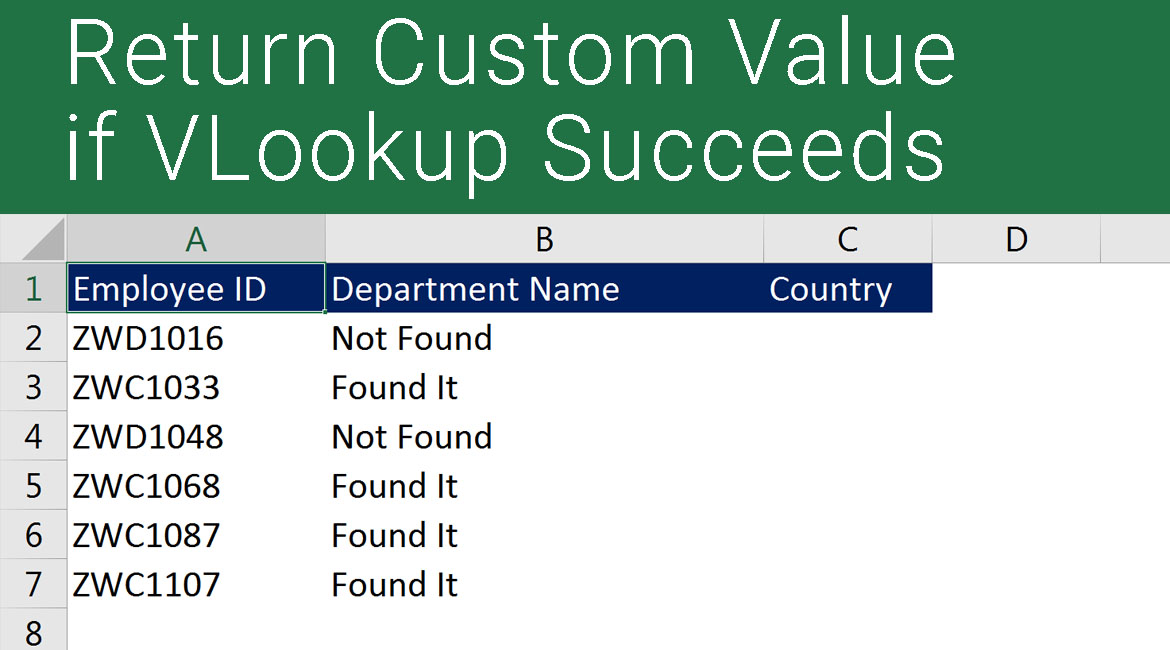
Return custom value in VLookup of Excel is an article that will help you understand how you can return a custom value when your VLookup succeeds.
Good to know
This exercise for returning a custom value in VLookup requires you to know the IF function, nested functions, and a basic understanding of how to use VLookup in Excel.
If you do not have the basic idea of these topics, refer to the following articles that will help you learn the prerequisite and then come back to this article to continue learning how to return a custom value in VLookup of Excel.
Click on the following button to download the file used in the demo to practice along with us.
Solution
To clarify how to return a custom value in VLookup of Excel, I will break the entire formula into pieces. Under each segment, I will explain the process in how we will move forward from that point. I will divide this exercise into steps to make it easy for you to understand.
Step 01
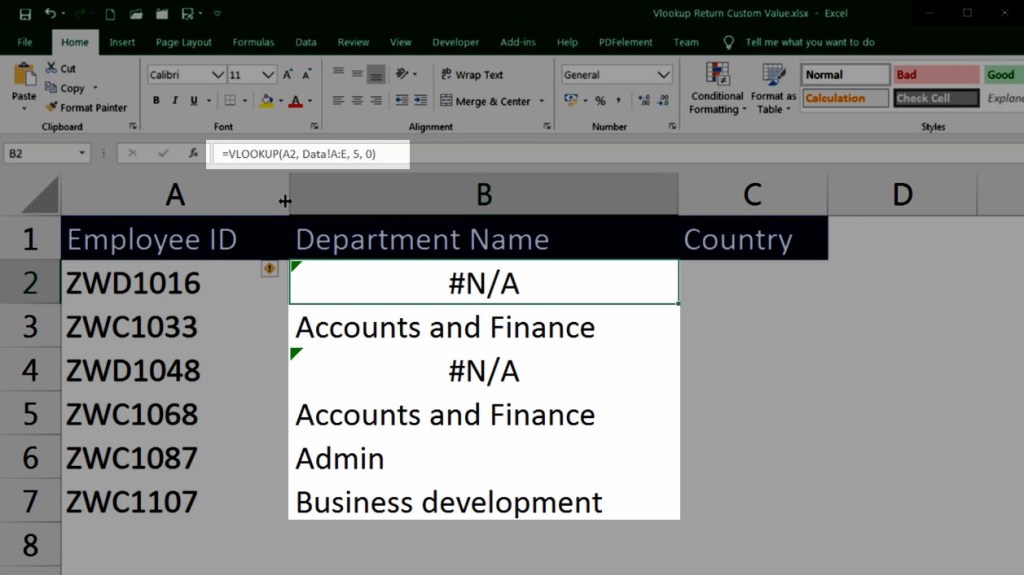
In the first step, I will run VLookup to find the employee ID in the given dataset. If the value is not found in the dataset, VLookup returns #N/A, which indicates no value for that specific employee ID. See the image below for reference.
Step 02
After running VLookup successfully, we will place it under the IFERROR function to handle the errors when a value is not found. This way, each time the VLookup fails to return a value or does not find a relative value for that lookup, we can produce a custom value. See the image below for reference.

Step 03
After handling the error message smoothly, we will place this entire VLookup function and IFERROR under the IF Function. Under the first part of the IF Function, we will place the VLookup function and IFERROR to test and see if it returns “NOT FOUND” as the value.
If the test under IF FUnction succeeds, it shall return “NOT FOUND” as the value, which indicates that the VLookup failed and could not find the relevant value. However, if the VLookup succeeds to fetch a relative value, the IF Function will fail to indicate the success of VLookup. At this time, we can put a custom value as we desire. We have placed the custom value as “Found it”. See the image and below for reference.

Return custom value in VLookup Video Tutorial
If you desire to watch and learn to Return custom value in VLookup iin excel, here is a quick demonstration for you.
Excel Learning Series – TOC
- Excel 2016 – Basics – Find Sum, Average, Min and Max
- Excel 2016 Difference Between Formulas and Functions
- Excel 2016 Copy Formulas or Functions
- Microsoft Excel Auto Fill
- Excel 2016 Manage Views using Freeze Panes
- Microsoft Excel – Saving Workbooks
- Excel Upper and Lower Text Functions
- Excel 2016 – Text Function – Proper
- Excel Text Functions – Trim Function
- Excel – Text Function Left Function
- Excel Text Function – Right Function
- Excel Text Functions – MID Function
- Excel Concatenate Text Function
- Excel Nested Functions
- Excel Search Function
- Excel – Calculate Age using Date Function Today
- Calculate Tenure in Excel with Days Function
- Autofill Dates in Excel
- Formatting Dates in Excel
- Excel Date Format Shortcut
- Calculating Sum of Time in Excel
- Calculate Expiry Date in Excel 2016 – EDATE
- Find Age or Tenure using DATEDIF in Excel 2016
- RandBetween – Generate Random Dates in Excel 2016
- Excel Weekday Function
- Excel WeekNum and ISOWeekNum Functions
- Excel Networkdays and Excel Networkdays.INTL
- Excel Workday and Workdays INTL Functions
- Excel DATEVALUE AND TIMEVALUE
- Calculate Time Difference in Excel
- Calculate Quarter in Excel
- Rounding Day, Hour and Minutes in Excel
- Excel Pay Rate and Downtime Cost Calculation
- Excel Logical Functions IF, AND, OR
- Calculate Bonus in Excel Using IF Function
- Excel Learning – SumIF and SumIFS
- How to use Excel Count Functions
- How to use VLOOKUP in Excel
- How to vLookup in a different workbook in Excel
- VLookup for Multiple Sheets with Example
- Excel Custom Quarters
- Vlookup Return Custom Value
- Vlookup Based on Dropdown Selection
- HLookup in Excel
- Locate information using Match Function in Excel
- Converting Numbers to Words in Excel with VBA: A Step-by-Step Guide
- Excel Drop Down List Multiple Selection
- Show The Time Difference In Excel In Minutes Only
- Excel 2016 – Basics – Find Sum, Average, Min and Max
- Excel 2016 Difference Between Formulas and Functions
- Excel 2016 Copy Formulas or Functions
- Microsoft Excel Auto Fill
- Excel 2016 Manage Views using Freeze Panes
- Microsoft Excel – Saving Workbooks
- Excel Upper and Lower Text Functions
- Excel 2016 – Text Function – Proper
- Excel Text Functions – Trim Function
- Excel – Text Function Left Function
- Excel Text Function – Right Function
- Excel Text Functions – MID Function
- Excel Concatenate Text Function
- Excel Nested Functions
- Excel Search Function
- Excel – Calculate Age using Date Function Today
- Calculate Tenure in Excel with Days Function
- Autofill Dates in Excel
- Formatting Dates in Excel
- Excel Date Format Shortcut
- Calculating Sum of Time in Excel
- Calculate Expiry Date in Excel 2016 – EDATE
- Find Age or Tenure using DATEDIF in Excel 2016
- RandBetween – Generate Random Dates in Excel 2016
- Excel Weekday Function
- Excel WeekNum and ISOWeekNum Functions
- Excel Networkdays and Excel Networkdays.INTL
- Excel Workday and Workdays INTL Functions
- Excel DATEVALUE AND TIMEVALUE
- Calculate Time Difference in Excel
- Calculate Quarter in Excel
- Rounding Day, Hour and Minutes in Excel
- Excel Pay Rate and Downtime Cost Calculation
- Excel Logical Functions IF, AND, OR
- Calculate Bonus in Excel Using IF Function
- Excel Learning – SumIF and SumIFS
- How to use Excel Count Functions
- How to use VLOOKUP in Excel
- How to vLookup in a different workbook in Excel
- VLookup for Multiple Sheets with Example
- Excel Custom Quarters
- Vlookup Return Custom Value
- Vlookup Based on Dropdown Selection
- HLookup in Excel
- Locate information using Match Function in Excel
- Converting Numbers to Words in Excel with VBA: A Step-by-Step Guide
- Excel Drop Down List Multiple Selection
- Show The Time Difference In Excel In Minutes Only
We hope you find this post useful. In case you are stuck and or need help, feel free to drop a comment below or submit your question. Do share it further and add your feedback about the article in the comments section.




Testing comment.